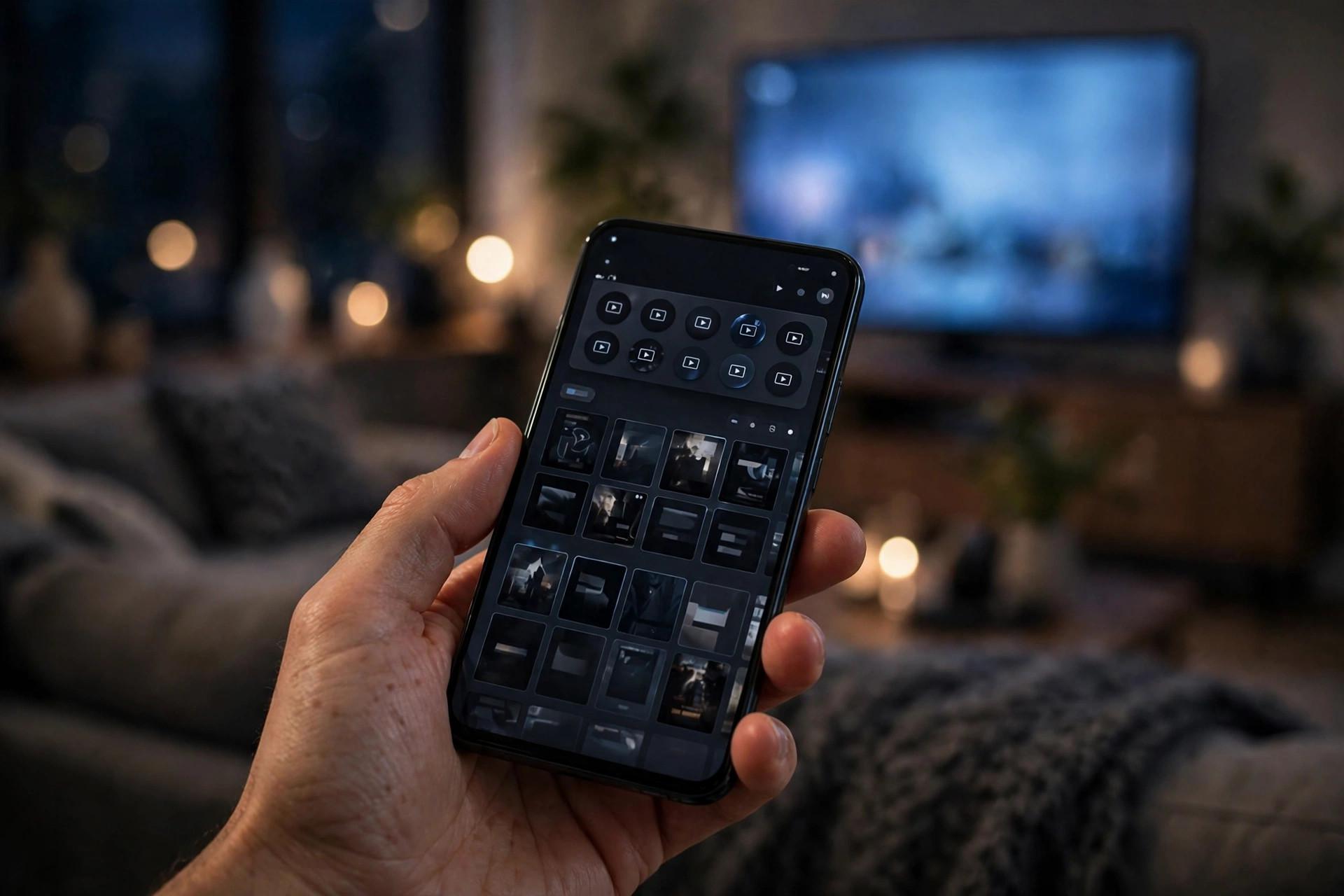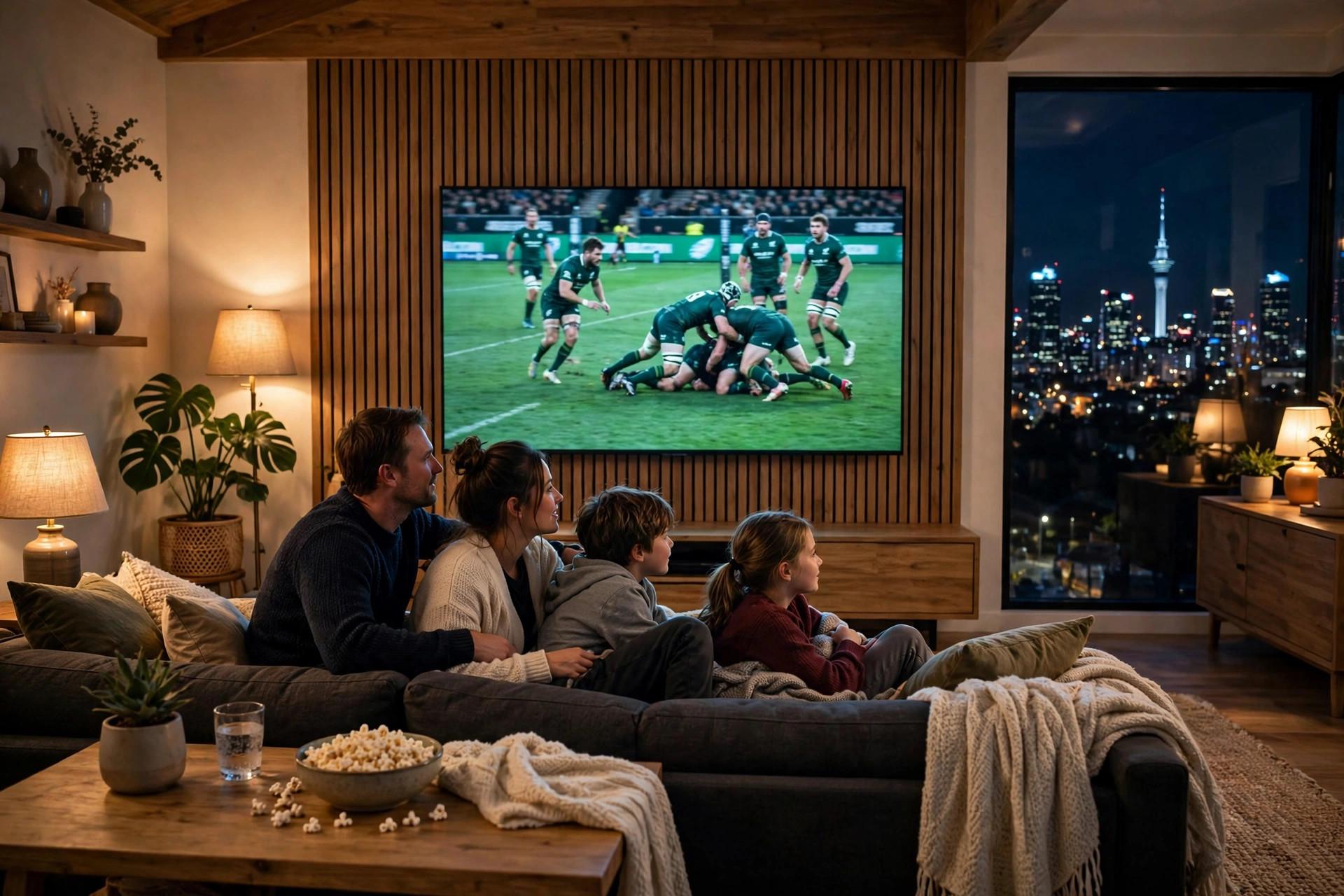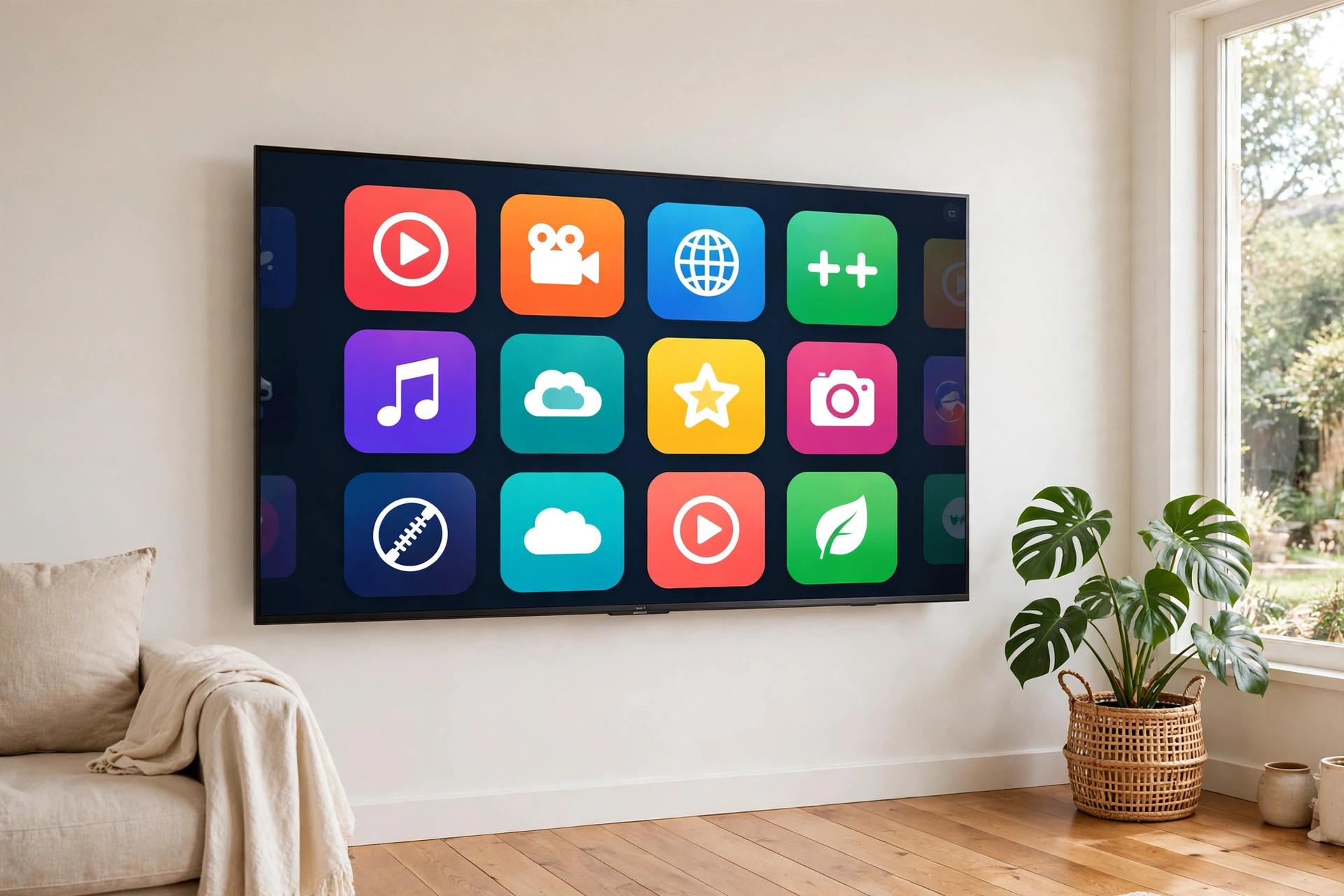
People searching for IPTV Smart TV New Zealand Samsung LG usually want one thing: the app on the TV itself, with no extra box. The Smart TV is the cleanest way to watch IPTV in a New Zealand lounge, because there is nothing extra to buy and nothing extra plugged into the back of the television. The Samsung in the lounge and the LG in the bedroom already have the app store, the Wi-Fi and the 4K panel — the only thing missing is the player app and the playlist. This guide covers the install on both, then the settings that keep the picture clean.
The two brands run different systems — Samsung uses Tizen, LG uses webOS — but the setup is the same shape on both: install the player from the app store, copy two details from the screen, send them on WhatsApp, and restart the app. The activation is free, and support does it while you wait.
IPTV Smart TV New Zealand Samsung LG: Setup Guide
On a Samsung TV, press Home, open Apps, and search for IBO Player. Install it, open it, and the screen shows a MAC address and a key — write them down exactly, or take a photo with your phone. Send both to 4K Media New Zealand on WhatsApp, and support activates the playlist, usually within a few minutes. Restart IBO Player and the channels load.
If IBO Player is not in the Samsung app store on an older model, the alternative is Smart IPTV, which works the same way: install, copy the MAC address, send it on WhatsApp. Very old Samsung TVs — before 2017 — may not run either app, and that is the point where a Firestick 4K Max for the same TV is the honest answer. See the Firestick guide if your TV is too old for the app.
LG Smart TV IPTV setup (webOS)
On an LG TV, press Home, open the LG Content Store, and search for IBO Player. Install it, open it, and copy the MAC address and the key from the screen. Send both on WhatsApp, wait for the activation message, and restart the app. The channels, the movies and the EPG load automatically.
LG's webOS is fast and the app runs well, but the remote is the weak point for channel surfing — the Magic Remote is fine for Netflix and awkward for a 57,000-channel EPG. Use the app's favourites: add Sky Sport 1, TVNZ 1, TVNZ 2 and Three on day one, and the remote stops being a problem. Set up TiviMate on Android TV if the household has a Sony or TCL as well.
Smart TV settings for the best picture
The setting that matters most is the network. Samsung and LG TVs have Wi-Fi built in, but the chip is often weaker than the one in a Firestick, and the TV is usually further from the router than the phone. Use Ethernet where the TV is near the router — most Samsung and LG models have a LAN port on the back — or 5 GHz Wi-Fi if the router is in the same room. A 4K stream needs about 25 Mbps steady.
Turn off the TV's motion smoothing for sport — on Samsung it is called Auto Motion Plus, on LG it is TruMotion — because it makes a rugby ball look like it is floating. Set the picture mode to Cinema or Movie for the most accurate colours, and set the player app to the highest quality the connection holds. If the picture still stutters, follow the buffering fix guide.
Smart TV IPTV problems and fixes
App not in the store: the TV is too old, or the app store region is wrong. Check the TV's region is set to New Zealand, update the firmware, and search again. If the app is still missing, a Firestick 4K Max plugged into the same TV solves it for about the price of two months of Premium.
Channels load but the EPG is empty: the EPG did not finish downloading — wait two minutes and restart the app. Picture freezes at peak time: switch to the HD feed and check the Wi-Fi, because the TV's chip is the usual limit. Still stuck? Message support on WhatsApp with the TV model and the MAC address; remote help is free. Start a free trial and test the TV on a match night. The honest test is always the same: run the free trial on a match night, watch a full game, and let the picture — not the sales page — decide.
Samsung Tizen: the app and its limits
Samsung uses Tizen, its own system, and the IPTV setup on a Samsung TV follows the shape every Smart TV follows: install the player from the app store, copy two details from the screen, send them on WhatsApp, and restart the app. Press Home, open Apps, search for IBO Player, install it and open it — the screen shows a MAC address and a key, and those two details are the whole activation. Write them down exactly, or take a photo with your phone, and send both to 4K Media New Zealand on WhatsApp. Support activates the playlist, usually within a few minutes, and a restart of IBO Player loads the channels, the movies and the EPG. If IBO Player is not in the Samsung app store on an older model, the alternative is Smart IPTV, which works the same way: install, copy the MAC address, send it on WhatsApp, and the playlist loads.
Very old Samsung TVs — before 2017 — may not run either app, and that is the point where a Firestick 4K Max for the same TV is the honest answer: plug it into the HDMI port, and the television that could not run an IPTV app becomes a 4K streaming box. The other limit on a Samsung is the remote, which is fine for Netflix and awkward for a 57,000-channel EPG — the favourites fix that, and the habit is to add Sky Sport 1, TVNZ 1, TVNZ 2 and Three on day one, so the remote stops being a problem. Check the TV region is set to New Zealand before you search the app store, because a TV set to the wrong region hides the apps, and update the firmware before you search — an old firmware hides apps that a new firmware shows. The Firestick guide walks through the Stick if the TV is too old for the app, and the buffering guide covers the network checks if the picture freezes.
LG webOS: the app and the Magic Remote
LG uses webOS, and the setup is the same shape as Samsung with a different store. Press Home, open the LG Content Store, search for IBO Player, install it and open it, and copy the MAC address and the key from the screen. Send both on WhatsApp, wait for the activation message, and restart the app — the channels, the movies and the EPG load automatically. LG's webOS is fast and the app runs well, and the newer LG models have the best Smart TV picture in the range for sport, with the motion handling that keeps a rugby ball sharp across a wet field. The picture settings matter: turn off TruMotion for sport, because it makes the ball look like it is floating, and set the picture mode to Cinema or Movie for the most accurate colours.
The Magic Remote is the weak point for channel surfing, because it is a pointer remote built for Netflix, not a button remote built for a 57,000-channel EPG. The favourites fix it the same way they fix the Samsung remote: add Sky Sport 1, TVNZ 1, TVNZ 2 and Three on day one, and the remote stops being a problem. The other detail on an LG is the network — the Wi-Fi chip in the TV is often weaker than the one in a Firestick, and the TV is usually further from the router than the phone, so use Ethernet where the TV is near the router, or 5 GHz Wi-Fi if the router is in the same room. A 4K stream needs about 25 Mbps steady, and the speed test on the TV itself is the number that matters. The TiviMate guide shows the player setup if the household has a Sony or TCL Android TV as well.
Android TV and Google TV: Sony, TCL and Chromecast
Android TV and Google TV are the third Smart TV family in New Zealand lounges, and they are the ones that run TiviMate natively — which makes them the best Smart TVs for IPTV. A Sony or TCL Android TV, a Google TV Streamer, or a Chromecast with Google TV all run the Google Play Store, and TiviMate installs from it directly, with no Downloader and no APK. Open the Play Store, search for TiviMate, install it, choose Add Playlist, then Xtream Codes login, and enter the server URL, the username and the password exactly as they arrive on WhatsApp. The EPG loads with the playlist, and the favourites, catch-up and multi-view that make TiviMate the enthusiast's player are all there on the TV itself. IPTV Smarters Pro installs the same way from the Play Store, and the login is the same three details.
The Android TV remote is the best of the three Smart TV remotes for IPTV, because it is a button remote built for a guide, and the voice search finds channels by name — say Sky Sport 1, and the TV opens it. The settings that matter are the same as on Samsung and LG: Ethernet where the TV is near the router, 5 GHz Wi-Fi if the router is in the same room, the player set to hardware decoding, and the app updated to the latest version. The household with a Sony in the lounge and a Samsung in the bedroom runs TiviMate on one and IBO Player on the other, and the same login covers both — the subscription follows the login, not the television. The Smarters Pro guide walks through the other player, and the fibre speed guide shows how much speed each screen needs.
Sound and picture settings for sport on a Smart TV
The picture settings on a Smart TV decide whether sport looks like sport or like a soap opera, and the two settings that matter are motion smoothing and picture mode. Motion smoothing — Auto Motion Plus on Samsung, TruMotion on LG, Motionflow on Sony — is built for movies, and it makes a rugby ball look like it is floating across the field, so turn it off for sport. Picture mode should be Cinema or Movie for the most accurate colours, not Vivid or Dynamic, which oversaturate the green of the field and the black of the jersey. The player app should be set to the highest quality the connection holds, and the HD feed is the fallback if 4K stutters at 7:30 pm on a Saturday — it needs about half the bandwidth, and the difference on a 55-inch TV at normal viewing distance is smaller than most people expect.
The sound matters as much as the picture, because the haka and the crowd are half the occasion. The TV speakers are the weak point on every Smart TV, and a soundbar — even a cheap one — does the anthems justice in a way the built-in speakers cannot. The TV cinema mode helps, and the soundbar goes in the lounge, not the bedroom, because the lounge is where the big games happen. If the picture still stutters after the settings are right, the network is the problem, not the TV: switch to the HD feed, check the Wi-Fi band, and run a speed test on the TV itself. The buffering guide walks through the whole diagnosis, and the free trial tests the TV on a match night before you pay anything.
App not in the store is the most common Smart TV problem, and the fix is the same on Samsung and LG: check the TV region is set to New Zealand, update the firmware, and search again. If the app is still missing, a Firestick 4K Max plugged into the same TV solves it for about the price of two months of Premium, and the television that could not run an app becomes a 4K streaming box.
The Smart TV as the household hub
The Smart TV is the hub of the New Zealand lounge, and the IPTV app is only one of the apps on it — Netflix, TVNZ+, ThreeNow, YouTube and the sports apps all sit on the same home screen, and the household switches between them with the same remote. The habit that makes the hub work is the home screen itself: put the IPTV player on the front row, beside the free apps, so the television opens on the channels the household actually watches instead of the app store. The TV software updates itself overnight, and the firmware update is the one that matters — an old firmware hides apps that a new firmware shows, and the app store region has to be set to New Zealand before the search finds the player. The Smart TV is the cleanest way to watch IPTV, because there is nothing extra to buy and nothing extra plugged into the back of the television, and the television the household already owns is the television that carries the rugby.