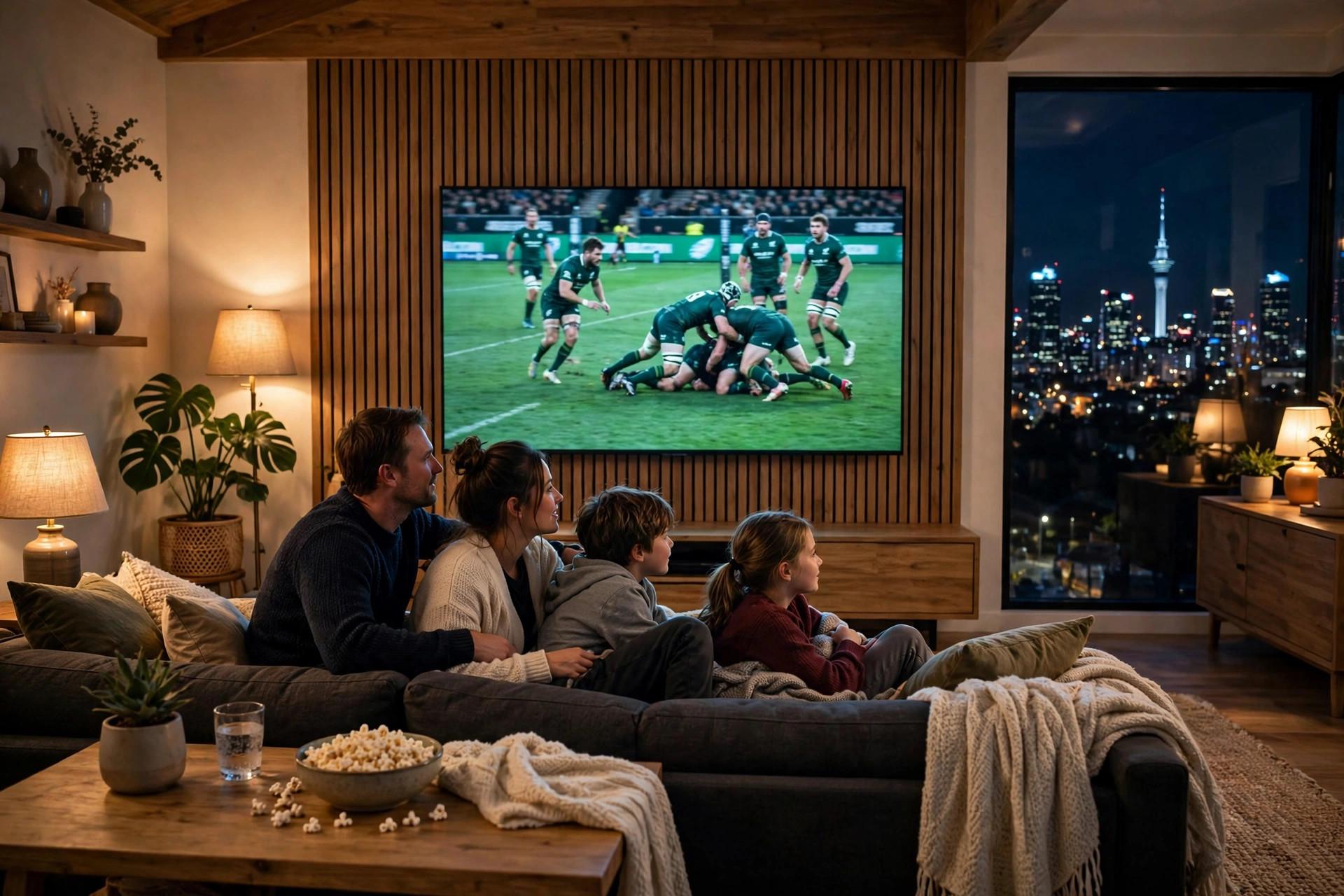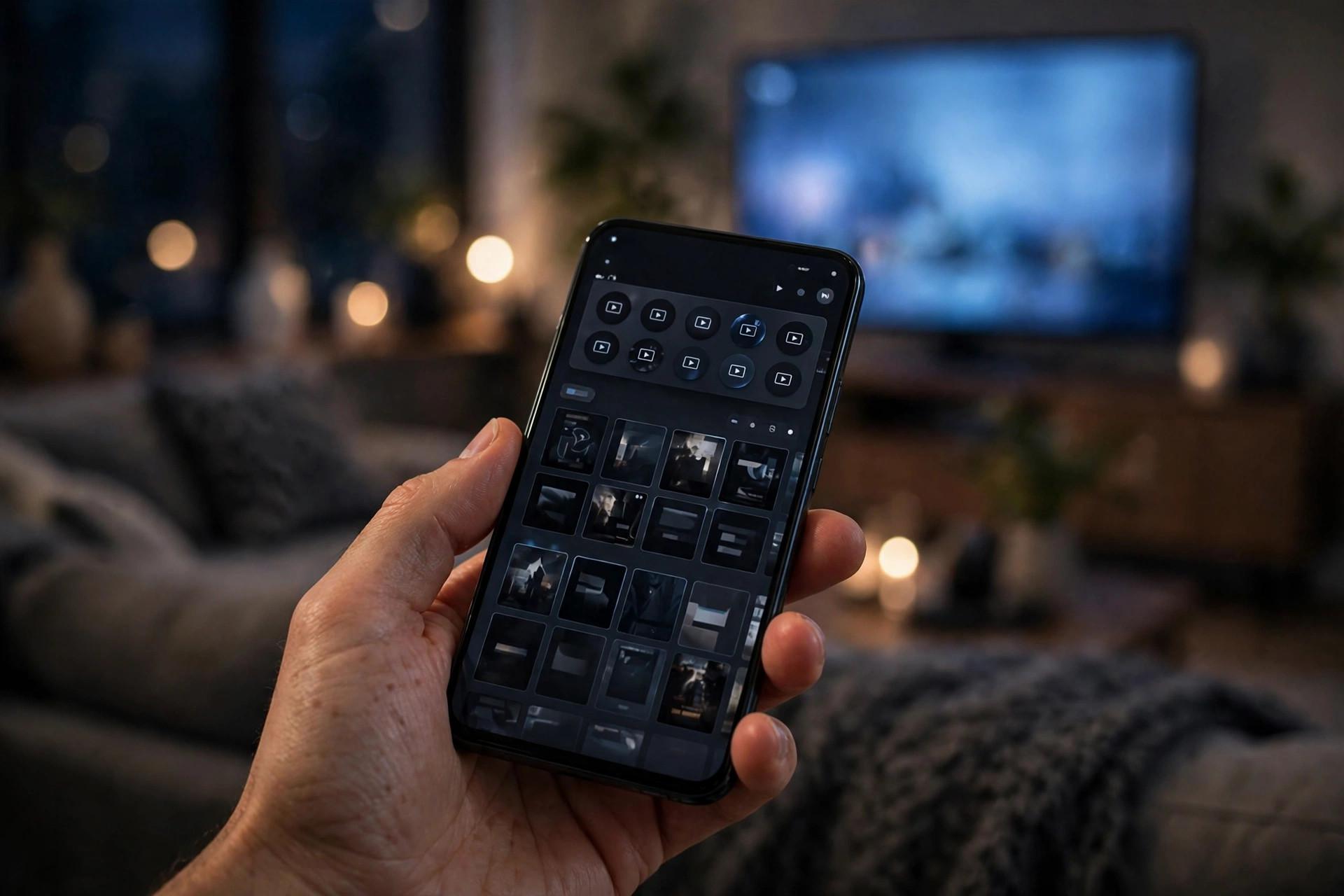
People searching for IPTV Smarters Pro New Zealand usually want one thing: the app on their device, logged in, with the channels working. IPTV Smarters Pro is the app support teams recommend first, because it runs on everything: Firestick, Android phone and tablet, iPhone and iPad, Samsung and LG Smart TV, Apple TV, Windows and Mac. One app, one login, and the channels, movies and EPG look the same on every screen. If TiviMate is the enthusiast's player, Smarters Pro is the one for the household that just wants the rugby on without a manual.
The login is the same on every device: Xtream Codes API, with three details — the server URL, the username and the password. They arrive on WhatsApp when the trial or subscription is activated, and they have to be exact. This guide walks through the install on each device, then the settings that make the app useful for a New Zealand household.
IPTV Smarters Pro New Zealand: Setup on Any Device
Install IPTV Smarters Pro from the App Store on iPhone or iPad, from the Google Play Store on Android, or from the Amazon Appstore on Firestick — on Firestick it is a direct install, no Downloader needed. Open the app and choose Login with Xtream Codes API. Enter the server URL, username and password exactly as they arrive on WhatsApp, then tap Add User.
The first load takes two to five minutes: the channel list, the movie library and the EPG all download at once. Do not close the app while it loads. When it finishes, the home screen shows Live TV, Movies, Series and the EPG. If the login fails, the details have a typo — copy them from WhatsApp rather than typing them, and check there is no trailing space. TiviMate users should read the TiviMate guide — the login is identical.
Smarters Pro on iPhone, iPad and Apple TV
On iPhone and iPad, Smarters Pro is the best way to watch on the go: the Warriors on the train home from work in Auckland, the cricket at the beach in Mount Maunganui, the news at the bach with no TV. The app works on mobile data, but a 4K stream uses about 7 GB an hour, so use Wi-Fi where you can and drop to HD on data — a two-hour match in HD uses roughly 3 GB.
On Apple TV, install Smarters Pro from the App Store and log in the same way. The Siri Remote navigates the guide well, and the app remembers your place in a series. If the EPG looks wrong on any Apple device, check the time zone is set to New Zealand — the guide should show 7:05 pm for a Saturday match, not 5:05 pm.
Favourites, EPG and multi-screen in Smarters Pro
Set favourites the first time you open the app: long-press Sky Sport 1, Sky Sport 4 for the NRL, TVNZ 1, TVNZ 2 and Three, and add them to favourites. The app opens on the home screen, but one tap takes you to the favourites group, which is where you will live all season. The EPG shows now and next for every channel, and tapping a programme shows the synopsis and the start time.
Multi-screen is built in: on a tablet or a large phone you can watch two channels at once, which is exactly what a Super Rugby and NRL double-header needs. The app also has a built-in player with hardware decoding, which is the smoothest option on a Firestick — leave the player setting on the default unless support tells you otherwise. See the device guides for every device we support.
Smarters Pro problems and fixes
Login fails: the server URL, username or password has a typo, or the subscription is not active yet. Copy the details from WhatsApp, check for trailing spaces, and message support if it still fails. Channels load but the EPG is empty: the EPG did not finish downloading — wait two minutes, then pull down to refresh the guide.
Buffering at peak time is usually the connection: switch to Ethernet or 5 GHz Wi-Fi and drop to the HD feed. If the app crashes on an older Firestick, clear the cache in the Fire TV settings — never clear data, or the login goes with it. Still stuck? Message support on WhatsApp with the device and the error. Start a free trial and test the app on a match night before you pay. The honest test is always the same: run the free trial on a match night, watch a full game, and let the picture — not the sales page — decide.
Smarters Pro on Samsung and LG Smart TVs
Samsung and LG are the two Smart TV brands most New Zealand lounges have, and IPTV Smarters Pro runs on both — which is the reason it is the player support teams recommend first for Smart TV households. On a Samsung TV, open the app store, search for IPTV Smarters Pro, install it and open it. On an LG TV, open the LG Content Store and do the same. Choose Login with Xtream Codes API, enter the server URL, the username and the password exactly as they arrive on WhatsApp, then tap Add User. The first load takes two to five minutes: the channel list, the movie library and the EPG all download at once, and the home screen shows Live TV, Movies, Series and the EPG when it finishes. If the login fails, the details have a typo — copy them from WhatsApp rather than typing them, and check there is no trailing space at the end of the password.
The Smart TV is the cleanest way to watch IPTV, because there is nothing extra to buy and nothing extra plugged into the back of the television — but the TV itself is also the weak point, because the Wi-Fi chip in a Samsung or LG TV is often weaker than the one in a Firestick, and the TV is usually further from the router than the phone. Use Ethernet where the TV is near the router — most Samsung and LG models have a LAN port on the back — or 5 GHz Wi-Fi if the router is in the same room. A 4K stream needs about 25 Mbps steady, and the speed test on the TV itself is the number that matters, not the number on the broadband plan. The Smart TV guide walks through the Samsung and LG install in detail, and the buffering guide covers the network checks if the picture freezes at peak time.
Watching on the go: phone and tablet
Smarters Pro earns its place on the phone and the tablet, because it is the player that travels. The Warriors on the train home from work in Auckland, the cricket at the beach in Mount Maunganui, the news at the bach with no TV, the Premier League at 4:00 am on a phone in bed — the same login works everywhere, and the channels, the movies and the EPG look the same on every screen. On iPhone and iPad, install from the App Store and log in with the same three Xtream Codes details. On Android, install from the Google Play Store the same way. The app works on mobile data, but a 4K stream uses about 7 GB an hour, so use Wi-Fi where you can and drop to HD on data — a two-hour match in HD uses roughly 3 GB, which is the number to remember before a long trip.
The tablet is the better second screen in the house, because the multi-screen view puts two channels on one screen — a Super Rugby game and a Warriors game at the same time, or the rugby and the news. On a large phone the same view works, though the pictures are small. The habit to build is the favourites: long-press Sky Sport 1, Sky Sport 4 for the NRL, TVNZ 1, TVNZ 2 and Three, and add them to favourites on every device, so the phone opens on the same channels as the lounge TV. The app remembers your place in a series, so a movie started on the TV can be finished on the tablet, and the EPG shows now and next for every channel with the start time in New Zealand time. The TiviMate guide shows the other player if the household wants the best EPG on an Android TV.
Parental controls and profiles in Smarters Pro
A household with children needs the parental controls set up on day one, and Smarters Pro has them built in. The adult 18+ channels are optional on Premium, and the app lets the household lock them behind a PIN, so the children cannot open them by accident while browsing the channel list. The lock sits in the app settings, and the PIN should be one the children do not know — the same rule as the Netflix profile PIN. The kids group in the app carries the cartoon and family channels, and the favourites for the children can be set separately: add the kids channels to favourites on the tablet the children use, and the adult channels never appear in their list. That separation is the whole point — the household watches what it wants, and the children watch what they should.
The other control worth setting is the default screen. The app opens on the home screen, but one tap takes you to the favourites group, which is where the household will live all season — so set the favourites first, before the children get the remote. If the household has a second TV for the children, the multi-device plans cover it: two devices at $159.99 a year, three at $224.99 and four at $269.99 on Premium, and each screen runs its own channel. The price breakdown shows the full annual maths, and the free trial is the way to test the controls on the real devices before you pay.
Smarters Pro vs TiviMate: which one suits your house
The choice between Smarters Pro and TiviMate comes down to the devices in the house and the way the household watches. Smarters Pro runs on everything — Firestick, Android phone and tablet, iPhone and iPad, Samsung and LG Smart TV, Apple TV, Windows and Mac — and the login is the same on every device, which makes it the player for a household with mixed devices. TiviMate is the player for the household that watches a lot of sport on one big screen: the best EPG, catch-up from the guide, recording, multi-view and the cleanest layout on an Android TV, a Firestick 4K Max or a Nvidia Shield. If the lounge TV is an Android TV or a Firestick, TiviMate is the better guide. If the house has iPhones, iPads and a Samsung TV, Smarters Pro is the better fit.
The honest answer is that most households can start with Smarters Pro and move to TiviMate later, or run both — the login is identical, the channels are identical, and the free trial tests both on a match night. The settings that matter are the same in both: the EPG time zone set to New Zealand, the favourites added for Sky Sport 1, Sky Sport 4, TVNZ 1 and Three, the player set to hardware decoding, and the app updated to the latest version. If the app crashes on an older Firestick, clear the cache in the Fire TV settings — never clear data, or the login goes with it. Still stuck? Message support on WhatsApp with the device and the error, and the Firestick guide walks through the device itself step by step.
One more detail worth knowing: Smarters Pro is the player, 4K Media is the subscription, and the two are separate. The app is free to install, the subscription is the bill that carries the channels, and the support line on WhatsApp covers both — so a question about the app and a question about the channels go to the same place.
Keeping Smarters Pro updated and tidy
Smarters Pro needs the same care as any app on a television: the updates, the cache and the storage. Update the app when the App Store or the Play Store offers a new version, because the updates fix the EPG bugs and the playback problems that the old version had, and an app that is a year out of date is an app that freezes at the worst moment. Clear the cache in the device settings when the app slows down — never clear data, or the login and the favourites go with it — and check the storage on a Firestick, because a full Stick slows down and the EPG stops updating. The login details live in the app, so a household that changes its password on WhatsApp needs to update the app as well, and the support line on WhatsApp is the place to ask if the login stops working after an update. Do those checks once a month, and the app stays fast all season.